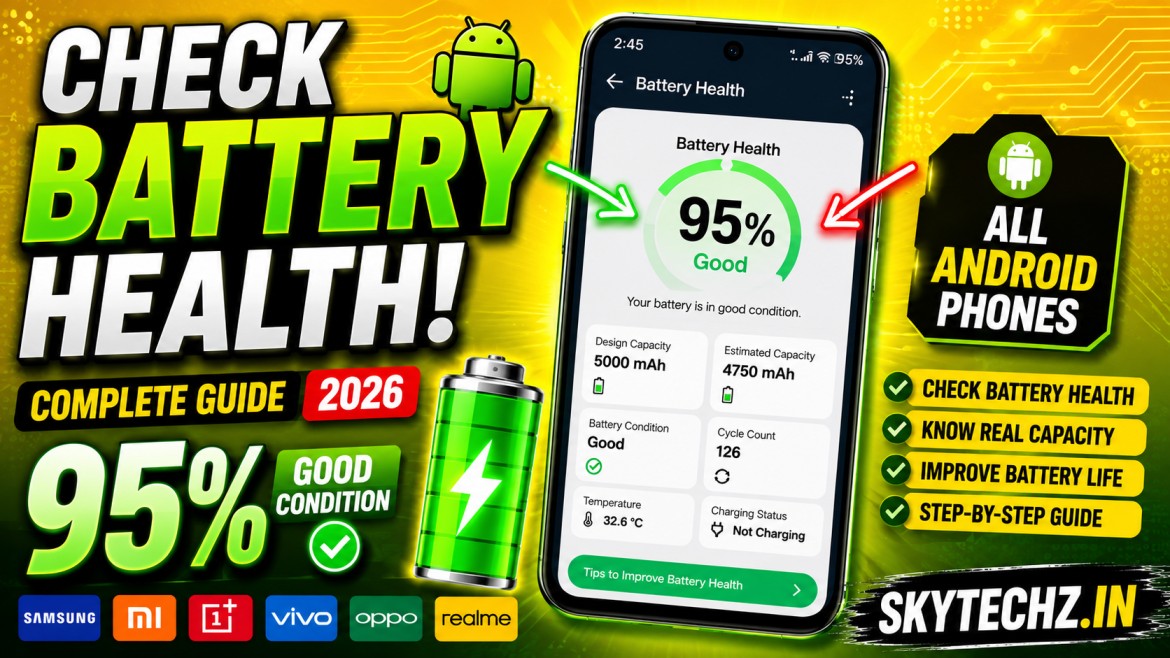
How to Check Android Battery Health on Any Phone (Samsung, Xiaomi, OnePlus & More) – Complete Guide (2026)
Have you ever noticed that your Android phone doesn’t last as long as it used to? Maybe it drains from 100% to 50% in just a few hours, becomes unusually hot while charging, or suddenly shuts down even though the battery indicator still shows some charge. These are common issues that many smartphone users experience after using their devices for a year or two.
Most people immediately assume that installing a battery saver app or deleting a few applications will solve the problem. While these steps may help slightly, they don’t address the real cause. In many cases, the battery itself has aged over time.
Every Android smartphone uses a rechargeable lithium-ion battery. Like all rechargeable batteries, it gradually loses its ability to hold a full charge. This is completely normal and happens because of regular charging, heat, and everyday use. Understanding your phone’s battery health can help you determine whether you need to change your charging habits or consider replacing the battery.
The good news is that checking battery health has become easier than ever. Depending on your phone’s brand, you can use built-in diagnostic tools, official device care features, or trusted battery monitoring apps to understand how your battery is performing.
In this guide, you’ll learn how to check battery health on Samsung, Xiaomi, Redmi, POCO, OnePlus, Vivo, Oppo, Realme, and other Android phones. You’ll also understand what battery health means and why it plays such an important role in your smartphone’s performance.
Table of Contents
What Is Android Battery Health?
Battery health refers to the overall condition of your smartphone’s battery compared to when it was brand new.
When a phone leaves the factory, its battery is designed to store its full rated capacity. As months and years pass, repeated charging and discharging slowly reduce that capacity. Instead of holding 5,000mAh, for example, an older battery may only be able to store around 4,300mAh.
A battery with excellent health can power your phone throughout the day without frequent charging. A battery with poor health may drain quickly, overheat during normal use, or cause unexpected shutdowns.
Unlike battery percentage, which tells you how much charge is left right now, battery health shows how much of the original battery capacity still remains.
Think of it like a water bottle. A new bottle can hold one litre of water. After years of damage, imagine that the bottle can only hold 800 millilitres. Even if you fill it completely, it still carries less water than before. Smartphone batteries behave in a similar way.
Why Battery Health Matters
Many users focus only on charging their phones to 100%, but battery health is actually much more important.
A healthy battery provides stable performance throughout the day. Apps open smoothly, games run consistently, and the phone remains reliable even during heavy usage.
As battery health decreases, you may experience several frustrating problems:
- Faster battery drain
- Phone becoming hot while charging
- Random restarts
- Slow performance caused by power management
- Longer charging times
- Unexpected shutdowns
Poor battery health can also reduce the overall lifespan of your smartphone. Instead of replacing the entire device, checking battery health early can help you decide whether simply replacing the battery is enough.
Many people spend hundreds of dollars on a new phone when a battery replacement would have restored excellent performance.
Understanding battery health also helps you adopt better charging habits that slow down battery ageing.
How Lithium-Ion Smartphone Batteries Work
Almost every modern Android phone uses a lithium-ion battery because it offers high energy density, lightweight construction, and fast charging support.
Whenever you plug in your charger, lithium ions move inside the battery to store energy. When you use your phone, those ions move back to produce electricity for the processor, display, cameras, and other components.
This movement happens every single day.
Over time, tiny chemical changes occur inside the battery. These changes gradually reduce the amount of energy it can store.
Several factors speed up battery ageing:
- Constant fast charging
- High temperatures
- Heavy gaming while charging
- Leaving the phone plugged in overnight every day
- Using low-quality chargers
- Keeping the battery at 0% or 100% for long periods
Battery ageing is completely natural, but proper care can significantly slow the process.
How to Check Battery Health on Samsung Phones
Samsung provides some of the easiest methods for checking battery condition.
Method 1: Samsung Members App
Many Samsung Galaxy devices include the Samsung Members application.
Open the app and navigate to Support, then select Phone Diagnostics or Diagnostics.
Choose Battery Status.
After a short analysis, you’ll see useful information about your battery’s condition. Depending on your device model and software version, Samsung may display whether the battery is in good condition, normal condition, or requires service.
This is the safest method because it uses Samsung’s own diagnostic system.
Method 2: Device Care
Some Galaxy devices also provide battery information inside Device Care.
Settings → Battery and Device Care → Battery
Here you can review:
- Battery usage
- Charging history
- Background battery consumption
- Estimated remaining battery life
Although this section may not always display battery health as a percentage, it provides valuable insights into overall battery performance.
Method 3: Samsung Service Diagnostics
If you want a more detailed battery assessment, Samsung service centres can perform professional battery diagnostics using official equipment.
This test can determine whether your battery has degraded enough to require replacement.
How to Check Battery Health on Xiaomi, Redmi & POCO
Xiaomi phones running recent versions of HyperOS or MIUI include several battery management features, although battery health visibility varies by model.
Method 1: Battery Settings
Open:
Settings → Battery
Here you can view battery usage, charging statistics, screen-on time, and app consumption.
Some newer devices also display battery condition and charging optimisation features.
Method 2: Hidden Battery Information
Certain Xiaomi models provide additional battery information through internal diagnostic menus or system logs.
These menus may reveal information such as charging cycles, battery temperature, voltage, and estimated battery condition. Since availability differs between models and software versions, not every device will show the same details.
Method 3: Battery Monitoring Applications
If your Xiaomi phone doesn’t provide built-in battery health information, reliable battery monitoring apps can estimate battery capacity by analysing charging behaviour over time.
These apps also display:
- Battery temperature
- Charging speed
- Voltage
- Charging cycles
- Estimated remaining capacity
While estimates may not perfectly match manufacturer diagnostics, they are often useful for tracking long-term battery condition.
How to Check Battery Health on OnePlus Devices
OnePlus smartphones include several battery management features that help users monitor charging performance and battery condition. Depending on your OxygenOS version, battery information may be available directly inside the Settings app.
Open Settings → Battery → Battery Health or Battery Settings.
Here you may find information such as battery optimization, charging habits, battery usage, and smart charging features. Some newer OnePlus models also display battery condition and estimated battery lifespan.
If your phone does not provide a dedicated battery health section, you can use a trusted battery monitoring application to estimate battery capacity and charging cycles.
How to Check Battery Health on Vivo, Oppo & Realme
Vivo, Oppo, and Realme smartphones share many software features because they are built on similar platforms.
To view battery-related information:
Settings → Battery
Here you can monitor:
- Screen-on time
- Battery usage by apps
- Power-saving options
- Smart charging features
- Background battery consumption
Some recent software versions also include charging protection features that reduce battery wear by slowing charging during overnight charging sessions.
If battery health isn’t shown directly, third-party battery monitoring apps can provide useful estimates based on charging behaviour.
How to Check Battery Health on Google Pixel & Motorola Phones
Google Pixel devices receive regular Android updates and include advanced battery management tools.
Open:
Settings → Battery
You can review:
- Battery usage
- Adaptive Battery
- Charging optimization
- Estimated battery life
Motorola phones provide similar battery information under Battery Settings, although battery health percentages are generally not displayed.
If detailed battery information is unavailable, battery monitoring apps remain a practical alternative.
Best Apps to Monitor Android Battery Health
Several trusted applications can estimate battery health by monitoring charging behaviour over time.
Popular battery monitoring apps include:
- AccuBattery
- Battery Guru
- Electron
- Device Info HW
These applications can display:
- Estimated battery capacity
- Battery temperature
- Charging speed
- Charging current
- Battery voltage
- Charge cycles
- Screen-on battery consumption
Remember that third-party apps provide estimates rather than official manufacturer measurements, but they are still useful for tracking long-term battery performance.
What Is Battery Cycle Count and Why Is It Important?
Every rechargeable battery has a limited number of charging cycles.
A charging cycle does not necessarily mean charging from 0% to 100% once. Instead, it represents using a total of 100% battery capacity over time.
For example:
- Charging from 50% to 100% equals half a cycle.
- Charging from 20% to 70% uses approximately half a cycle.
Most modern smartphone batteries are designed to maintain good performance for several hundred charging cycles before noticeable degradation begins.
Higher cycle counts generally indicate greater battery wear, although charging habits and temperature also influence battery lifespan.
Signs Your Phone Battery Needs Replacement
A battery gradually wears out with age, but certain warning signs indicate that replacement may be necessary.
Common symptoms include:
- Battery drains unusually fast.
- Phone shuts down unexpectedly.
- Device becomes very hot during normal use.
- Charging takes much longer than before.
- Battery percentage jumps suddenly.
- Phone restarts without warning.
- Battery swelling or screen lifting.
If you notice physical swelling, stop using the phone immediately and have the battery replaced by an authorized service centre.
Tips to Improve Android Battery Health
While battery ageing cannot be stopped completely, good charging habits can significantly extend battery lifespan.
Helpful practices include:
- Keep battery charge between approximately 20% and 80% whenever practical.
- Avoid exposing the phone to excessive heat.
- Remove thick cases while fast charging if the device becomes hot.
- Use original or certified chargers.
- Avoid heavy gaming while charging.
- Install software updates regularly.
- Enable adaptive or optimized charging if available.
- Reduce unnecessary background activity.
- Lower screen brightness when possible.
- Avoid leaving the battery completely discharged for long periods.
Small improvements in daily charging habits can make a noticeable difference over several years.
What About Smartphone Batteries
You Must Fully Discharge the Battery Before Charging
Modern lithium-ion batteries do not require complete discharge before recharging.
Charging Overnight Always Damages the Battery
Today’s smartphones automatically manage charging once the battery reaches full capacity. However, keeping the phone warm for extended periods every night may contribute to gradual ageing over the long term.
Closing Every App Saves Battery
Android already manages background applications efficiently. Constantly force-closing apps may actually increase battery usage because they restart repeatedly.
Fast Charging Always Ruins the Battery
Fast charging itself is not harmful when using compatible chargers and manufacturer-approved charging technology. Heat is the bigger concern than charging speed.
Can I check Android battery health without installing an app?
Yes. Some manufacturers provide battery information through built-in settings or diagnostic tools.
What battery health percentage is considered good?
A battery that still retains most of its original capacity generally performs well for everyday use. As capacity decreases significantly, shorter battery life becomes more noticeable.
Do battery saver apps improve battery health?
Battery saver apps may reduce power consumption, but they cannot restore battery capacity that has already been lost through normal ageing.
When should I replace my smartphone battery?
If the battery drains very quickly, overheats frequently, shuts down unexpectedly, or shows signs of swelling, replacing it is usually the best solution.
Does fast charging reduce battery life?
Modern fast charging systems are designed with battery protection mechanisms. Using certified chargers and avoiding excessive heat helps maintain long-term battery health.
Conclusion
Your smartphone’s battery is one of its most important components, and its condition directly affects performance, reliability, and daily usability. Knowing how to check battery health allows you to identify problems early, adopt healthier charging habits, and decide whether a battery replacement is necessary instead of purchasing a new phone.
Whether you use a Samsung, Xiaomi, Redmi, POCO, OnePlus, Vivo, Oppo, Realme, Google Pixel, Motorola, or another Android device, monitoring battery condition regularly is a smart habit. Combined with proper charging practices and regular software updates, good battery care can help your phone remain reliable for years.
A few minutes spent checking your battery health today could save you from unexpected shutdowns, poor performance, and unnecessary upgrade costs in the future.